Skip to content
Arlou BeloriaInvite me
Back to workshops

Hands-on workshop

$git init your dev journey

From your first commit to a live portfolio website.

DeliveredGit & GitHub 101: The Beginner's Guide to Version Control
September 5, 20267:00 to 9:10 PMOnline via Agora6 chapters
On this page

The story of Git and GitHub

01 / 06

What version control is, who made Git, and how GitHub fits in.

15 min
AGENDA

Current quests

Every command group ends with an activity, and every activity leaves you with something to keep.

  1. 01
    The story of Git and GitHub15 min

    RewardGit knows your name; every snapshot from now on is signed

  2. 02
    Connect your machine to GitHub15 min

    RewardAn SSH key GitHub trusts, no passwords for the rest of the night

  3. 03
    Your first repository25 min

    RewardA profile README live on github.com/your-username

  4. 04
    Work with an existing repository40 min

    RewardA merged pull request, everyone's names on your laptop, and the conventions teams actually follow

  5. 05
    Ship your portfolio25 min

    RewardA portfolio website online, free, at your-username.github.io/portfolio

  6. 06
    The Git cheat sheet10 min + Q&A

    RewardEvery command from tonight, in the order you will reach for it
CHECKLIST

Pre-flight check

  1. 01Git installed (Windows: Git Bash comes with it).
  2. 02GitHub account created and signed in.
  3. 03VS Code installed, and code . opens the current folder from the terminal.
  4. 04Terminal open: Git Bash on Windows, Terminal on Mac.
terminal
git --version# anything 2.x is fine
code .# VS Code opens
# not found? Mac: Cmd+Shift+P → "Shell Command: Install 'code' command in PATH"
# Windows: reinstall VS Code with "Add to PATH" checked, then reopen Git Bash
LESSON

What Git is

the folder-of-copies problem
project.zip
project_v2.zip
project_v2_FINAL.zip
project_v2_FINAL_fixed.zip
project_v3_USE_THIS_ONE.zip

Which one is the real one? What changed between v2 and v3? Who broke it? Version control answers all three, with one folder.

A version control system: it records every change to your files, so any version is one command away. No more Project_Final_v3.zip. One folder, full history.

The analogy

Git is a video game save state for your code. Mess up the boss fight? Reload your previous save. Every commit is a save point you can return to.

LESSON

Who made Git

Linus Torvalds, in 2005, because the Linux kernel team lost access to the tool they were using. He wrote a replacement in about two weeks.

~2 wks
to write the first working version
2005
released, still the standard 20+ years on
"git"
British slang; he named it after himself, as a joke
LESSON

Git vs. GitHub

Git runs on your laptop and tracks history. GitHub is a website that hosts Git repositories so you can back them up, share them, and work with other people.

One line to remember

Git is the tool. GitHub is the place. You can use Git without GitHub; you cannot use GitHub without Git.

ACTIVITY

Introduce yourself to Git

ScenarioGit signs every snapshot with a name and email. Set yours once and never again.

terminal
git --version# anything 2.x is fine
git config --global user.name "Your Name"
git config --global user.email "you@example.com"# same email as your GitHub account
git config --global init.defaultBranch main
git config --global pull.rebase false# when pulling, merge (needed in Part 04)
git config --list# check your answers
Checkpoint

Paste your git --version output in the chat. Pre-work done: Git installed, GitHub account created.

Connect your machine to GitHub

02 / 06

An SSH key is a password your computer types for you. Make one, hand the public half to GitHub, then meet the three other ways in.

15 min
LESSON

Two keys, one handshake

Private key

Stays on your laptop. Never share it, never paste it anywhere.

Public key

Goes to GitHub. When you push, the two keys shake hands.

No passwords to type, no tokens to expire mid-workshop.

LESSON

Four ways to prove it is you

SSH is the path we walk tonight. It is not the only door, and which one you reach for depends on the machine you are sitting at.

SSH key

Tonight's path. One key pair per machine, set up once, never typed again. Best on a laptop you own.

HTTPS + token

The fallback. Clone over https:// and paste a Personal Access Token where it asks for a password. Works on networks that block SSH.

GitHub CLI

The shortcut. gh auth login walks you through it in the terminal and stores the credential for you, over HTTPS or SSH.

Desktop or VS Code

The no-terminal path. Sign in inside the app once and it handles the credential silently. Fine for your own projects, limiting the day you need the terminal anyway.

A Personal Access Token is a password with an expiry date and a list of what it is allowed to touch. Treat it like a password: never paste one into a file you commit.

if SSH is not an option
# HTTPS: clone the https:// URL, paste a token when it asks for a password
git clone https://github.com/your-username/repo.git
# token: GitHub → Settings → Developer settings → Personal access tokens → Fine-grained
git config --global credential.helper manager# Windows: paste the token once, not every push
# GitHub CLI: one command instead of all of the above
gh auth login# GitHub.com, then HTTPS or SSH, then Login with a web browser
# network blocks port 22? SSH still gets through on 443
ssh -T -p 443 git@ssh.github.com# then pin that host in ~/.ssh/config
Which one should you use?

On a laptop you own, SSH. On a work machine, a shared computer, or a locked-down network, HTTPS with a fine-grained token you can revoke from the browser the moment you walk away.

Already cloned with the wrong one?

Nothing is lost. git remote set-url origin git@github.com:you/repo.git swaps HTTPS for SSH, and the same command with the https:// URL swaps it back.

ACTIVITY

Generate and register your key

ScenarioYou want GitHub to trust this laptop.

terminal
ssh-keygen -t ed25519 -C "you@example.com"# press Enter three times
cat ~/.ssh/id_ed25519.pub# the PUBLIC key, starts with ssh-ed25519
# copy the whole line
# GitHub → Settings → SSH and GPG keys → New SSH key → paste
ssh -T git@github.com# type yes when asked
Checkpoint

You should read Hi username! You've successfully authenticated. That is the green light for the rest of the night.

Windows note

Run everything in Git Bash, not PowerShell. It comes with the Git installer.

Your first repository

03 / 06

Turn a folder into a repository, take your first snapshot, and publish it as your GitHub profile.

25 min
LESSON

The four commands

Every Git session is the same loop: edit, stage what you want to keep, commit it with a message, check the history.

terminal
git init# turn the folder into a repository
git status# what changed since the last snapshot
git add .# stage everything (or name one file)
git commit -m "Describe the change"# take the snapshot
git log --oneline# history, one line per commit
The analogy

add puts items in the shopping cart. commit checks out. Nothing is saved to history until you commit.

LESSON

Create the repository on GitHub

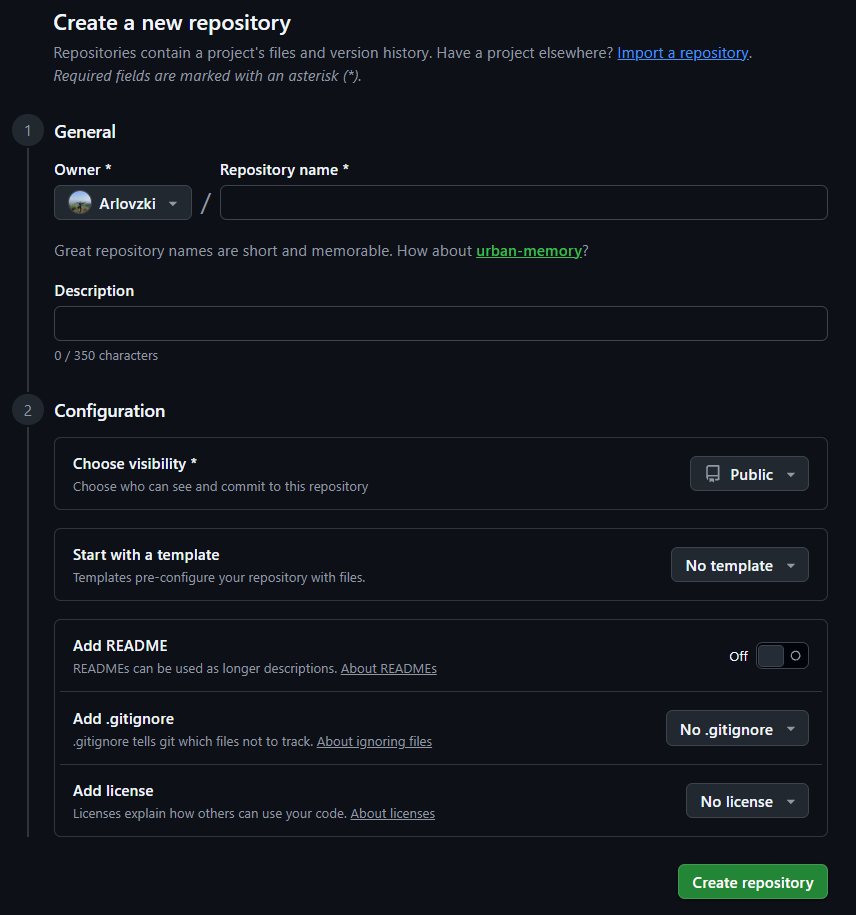
The terminal half of the next activity is six commands. The browser half is one form, and one wrong toggle on it breaks the first push. This is the form.

  1. 01Top right of any GitHub page: the + button, then New repository. Or type github.com/new into the address bar.
  2. 02Owner is you. Repository name is exactly your username; capitals do not matter. The moment it matches, GitHub shows a banner calling it a special repository whose README appears on your profile. No banner means a typo.
  3. 03Description is optional. Skip it tonight.
  4. 04Choose visibility: Public. A private profile README shows to nobody.
  5. 05Leave the configuration section untouched: No template, Add README off, No .gitignore, No license. The repository must be empty, because the activity pushes one that already exists on your laptop.
  6. 06Press Create repository. The page that follows is empty on purpose: it lists the remote-add and push commands you are about to type.
GitHub's Create a new repository form: Owner and Repository name fields, Description, then the Configuration section with visibility set to Public, no template, the Add README toggle off, no .gitignore, no license, and the green Create repository button.
github.com/new: name it after yourself, Public, and every option under Configuration left as it is
Why every option stays off

Each of those options makes GitHub write a first commit for you. Your laptop does not have that commit, so your own first push is refused with ! [rejected] main -> main (fetch first): the two histories do not share a starting point. An empty repository has no history to disagree with. Ticked one anyway? Either delete the repository and create it again, or run git pull origin main --allow-unrelated-histories once before you push.

The page after Create

It shows a Quick setup box with an HTTPS or SSH toggle and, under push an existing repository from the command line, the same git remote add origin and git push -u origin main lines as the activity. Flip the toggle to SSH before you copy anything: the HTTPS URL would ask for the password Part 02 set you up to never type.

ACTIVITY

Your GitHub profile README

ScenarioA repository named exactly like your username becomes the front page of your GitHub profile.

  1. 01On GitHub: + → New repository, name it your-username, Public, and leave Configuration untouched: README off, no .gitignore, no license (the form is in the section above).
  2. 02Back in the terminal, build the repository from scratch:
terminal
mkdir your-username && cd your-username
git init
nano README.md# or open the folder in VS Code
git add README.md
git commit -m "Add profile README"
git remote add origin git@github.com:your-username/your-username.git# link the local repo to GitHub
git push -u origin main# -u once; plain git push after this
README.md
# Hi, I'm Alex
CS student building web apps
## Now learning
React · Git · AWS
## Find me
[LinkedIn](https://linkedin.com/in/alex)
Do not want to write it by hand?

rahuldkjain.github.io/github-profile-readme-generator builds a profile README for you: tick the skills and socials you want, and it hands you the Markdown to paste into README.md. Start there, then edit it until it sounds like you.

Checkpoint

Refresh github.com/your-username. Your README is live at the top of your profile.

REFERENCE

Markdown cheat sheet

README files are written in Markdown: plain text with a few symbols for formatting.

markdown
# Heading 1# biggest heading
## Heading 2# section heading
**bold** and *italic*
- item# bulleted list
1. item# numbered list
[text](https://url)# link
![alt text](image.png)# image
`code`# inline code
---# horizontal rule

Full reference: markdownguide.org/cheat-sheet

Work with an existing repository

04 / 06

Most of your career is spent in repositories other people started. Clone, break, undo, branch, send a pull request, and learn the conventions that make it land.

40 min
LESSON

Fork, clone, origin, upstream

Four words that all mean "a copy" and none of which mean the same thing. In the order they happen to you.

Fork

A copy on GitHub, under your account. Happens in the browser, once. You need one because you cannot push to a repo you do not own.

Clone

A copy on your laptop. Happens in the terminal, as often as you like. Clone your fork, never the original.

origin

The remote your clone came from: your fork. This is where git push goes when you do not say otherwise.

upstream

The name everyone gives the original. Not there by default; you add it, and you only ever pull from it.

Your fork does not update itself. The moment someone merges into the original, your fork is behind, and every branch you cut from it starts behind too.

The rule

Sync before you branch. Every time. A five-second habit that spares you the merge conflict you would otherwise meet at the worst moment, right as you are trying to finish.

sync the fork, then branch
git switch main# never work on main in a fork; keep it a clean mirror
git fetch upstream# download the original's new commits, change nothing yet
git merge upstream/main# your local main now matches the original
git push# and so does your fork on GitHub
git switch -c feature/your-thing# now cut the branch, from an up-to-date main
The button that does the same thing

Your fork's page on GitHub shows a Sync fork button when it is behind. It runs the first four commands for you. Learn the commands anyway: the button is not there when you are on a plane.

ACTIVITY

Fork and clone the workshop repo

ScenarioYou want your own copy of a repository you do not own.

  1. 01Open github.com/Arlovzki/git-github-101 and press Fork. GitHub copies it into your account.
  2. 02Clone your fork, not the original:
terminal
cd ..# leave the profile repo
git clone git@github.com:your-username/git-github-101.git
cd git-github-101
git log --oneline# history came with it
git remote -v# origin points at your fork
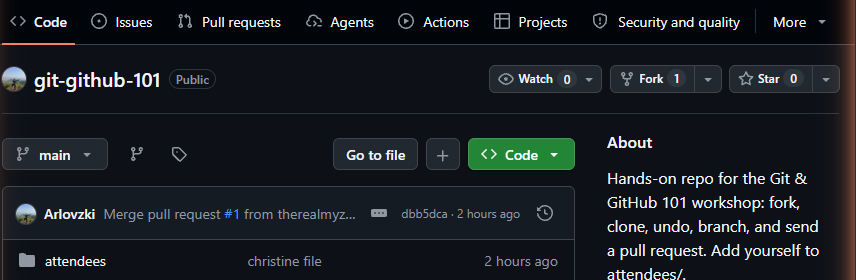
The GitHub repository header for Arlovzki/git-github-101, with the Fork button sitting between Watch and Star.
Fork lives in the repo header, top right
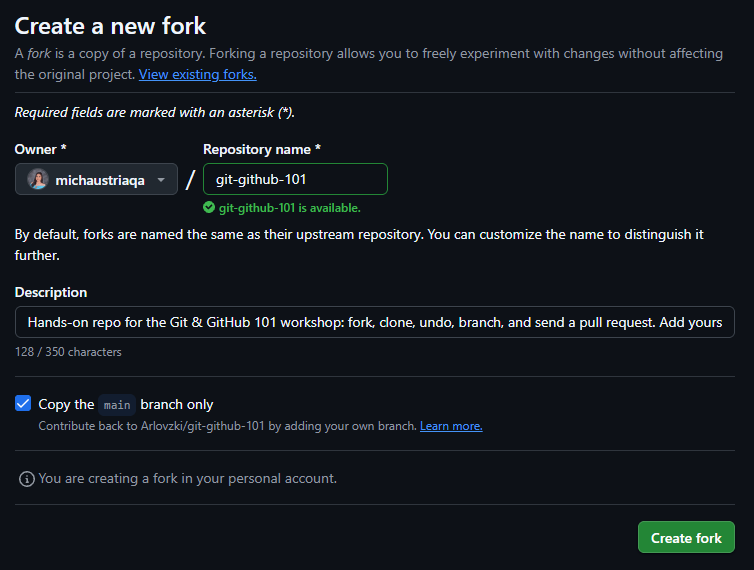
The Create a new fork dialog: owner, repository name, description, and the checkbox for copying the main branch only.
Leave "Copy the main branch only" ticked
Fork vs. clone

Fork copies a repo to your GitHub account. Clone downloads a repo to your laptop. You fork once, clone as often as you like.

LESSON

Three ways to undo

restore

For files. Throw away edits you have not committed.

reset

For commits only you have. Rewinds history on your machine.

revert

For commits others may have pulled. Adds a new commit that reverses one.

Never reset --hard on a shared branch.

ACTIVITY

Break it, then undo it

ScenarioYou edited the wrong file. Or committed too early. Or committed something you wish you had not.

terminal
# 1. Undo an edit you have not staged
echo "oops" >> README.md
git diff# see the damage
git restore README.md# file goes back to the last commit
# 2. Undo a commit but keep the work
echo "draft" >> notes.md && git add . && git commit -m "wip"
git reset --soft HEAD~1# uncommit, changes stay staged
# 3. Undo a commit and throw the work away
git add . && git commit -m "wip again"
git reset --hard HEAD~1# uncommit AND discard changescareful
# 4. Undo a commit that is already pushed
git revert HEAD --no-edit# new commit that reverses the last one, history intact
# 5. Experiment over: match your fork on GitHub again
git reset --hard origin/main# origin/main is your safety net; the four commits are backcareful
Rule for beginners

restore for files, reset for commits only you have, revert for commits others may have pulled. Never reset --hard on a shared branch.

LESSON

Branches: main always works

maingit switch -c featurefeature: commits on the branchgit merge feature

A branch is an alternate timeline. Experiment there, then merge it back or throw it away. A pull request is how you ask for the merge, with review.

terminal
git switch -c feature# new branch
git switch main# go back
git merge feature# bring it in
git branch# where am I?
LESSON

Naming branches

Nobody rejects a pull request over a bad branch name. They do lose ten minutes working out what it was for, and one of those ten minutes is yours.

A branch name has two halves: a type that says what kind of change it is, a slash, then a short description in lowercase words joined by hyphens. feature/add-alex-to-attendees tells a stranger what is on the branch before they open it.

the shape
type/short-description# lowercase, hyphens between words, no spaces
feature/add-alex-to-attendees# good: the type, then the what
fix/pages-404# good: short and searchable
docs/readme-setup-steps# good
fix/42-pages-404# good: the issue number, when there is one
patch-1# bad: GitHub's default, means nothing
my-stuff# bad: whose, and what stuff?
Alex_Branch_FINAL# bad: capitals, underscores, and FINAL never is
feature/

Something new. A page, a section, a file that did not exist before. Some teams spell it feat/; either is fine, but one repo picks one.

fix/

Something repaired. A bug, a broken link, a typo that changes meaning. hotfix/ is the urgent kind that goes straight to production.

docs/

Only the words changed. README, comments, a guide like the one you are reading.

chore/

Housekeeping. Dependencies, config, renames. Nothing a user of the project would notice.

One topic per branch

If you cannot name it in a few words, it is two branches. A branch that fixes the 404 and restyles the header gets reviewed as one thing and merged as one thing, and the reviewer who wanted only the fix has no way to take it.

What Git itself refuses

No spaces, no .., none of ~ ^ : ? * [ \, no leading dot, nothing ending in / or .lock. Everything else is convention. One trap: a branch called feature blocks every feature/... branch, because Git stores branches as files inside folders and a file cannot also be a folder.

On a branch only you will ever see, like my-notes in the next activity, the name barely matters. The moment you push it, the name is documentation: it shows up in the pull request, in git branch -r on everyone's laptop, and in the history of who did what.

Match the repo

Before your first branch on someone else's project, run git branch -r and read how they name theirs. If they use feat/, you use feat/. If they put the ticket number first, so do you. A consistent log beats a correct one.

Branches are temporary. main is the only one that lives forever (some teams add a develop or a release/1.2, and those are the exceptions, not the pattern). Everything else is deleted the moment it merges. A repo with forty stale branches is a repo where nobody can tell what is still in progress.

LESSON

Conventional commits

First the rule every repo shares, then the one extra word most teams put in front of it.

A commit subject is written in the imperative mood: finish the sentence "if applied, this commit will ___". Keep the bare sentence under 50 characters and leave off the full stop.

plain subjects
Add Alex to attendees# good: imperative, says what changed
Fix the 404 on the Pages deploy# good
Remove the debug logging from index.html# good
update# bad: update what?
asdf# bad
final FINAL fix pls work# bad, and you will read it again in a year
Why imperative

Git writes its own messages that way: Merge branch 'main', Revert "Add banner". Match it and the log reads in one voice instead of two.

Conventional Commits keeps that sentence and puts one lowercase word in front of it, so that a machine can read the log as well as a person.

the shape
type(scope): short description
Optional body: what changed and why, wrapped at 72 characters,
separated from the first line by a blank line.
Optional footers: Closes #12, or BREAKING CHANGE: what the reader must now change

The type is one word from a short list. The scope, in parentheses, is the part of the project you touched, and it is optional. After the colon comes the same imperative sentence, now starting lowercase and still without a full stop. Keep the whole first line under 72 characters; GitHub cuts it off there.

the types
feat# a new feature. Bumps the minor version: 1.0.0 becomes 1.1.0
fix# a bug fix. Bumps the patch version: 1.0.0 becomes 1.0.1
feat!# a breaking change, on any type. Bumps the major version: 1.0.0 becomes 2.0.0
docs# documentation only
style# formatting, whitespace, semicolons; the code does the same thing
refactor# a code change that neither fixes a bug nor adds a feature
perf# a change that makes it faster
test# adding or correcting tests
build# the build system or dependencies
ci# the pipeline configuration
chore# maintenance nothing else covers; nobody using the project notices
revert# undoes an earlier commit; name it in the body
conventional subjects
feat: add Alex to attendees# good: type, colon, the imperative sentence
fix(pages): serve index.html from the root# good: the scope says where
docs: add the setup steps to the README# good
chore: bump dependencies# good
feat!: drop support for Node 18# good: the ! warns everyone up front
Fixed bug# bad: no type, past tense, which bug?
feat: stuff# bad: right type, empty sentence
FEAT: Add Login Page.# bad: capitals, and a full stop
Why one extra word

git log --oneline reads like a changelog instead of a diary, and tools can read it as one. commitlint rejects a message that breaks the shape. release-please and semantic-release pick the next version number from the types and write the release notes for you: every fix is a patch, every feat a minor, every ! a major. Nobody sits down to write the changelog, because the log already is one.

This site's own history is written that way: feat(codex): host the Git & GitHub 101 workshop page, fix(sprite): laptop faces the engineer, build(deck): make the .pptx reproducible. Open any popular repository and you will find the same shape in most of them.

Match the repo, again

Run git log --oneline -20 before your first commit. If the log has types, use them. If it does not, plain subjects like "Add Alex to attendees" are that repo's convention, and a lone feat: in the middle of them looks wrong. The workshop repo uses plain subjects, so tonight's activities do too. Never mix the two in one repo.

Squash merges read the title

When a pull request is squashed, GitHub uses the pull request title as the commit message on main by default. On a repo that uses Conventional Commits, the title needs the type too: feat: add Alex to attendees, not the branch name GitHub suggests.

Need to explain why? Blank line after the subject, then the body, wrapped around 72 characters. Most commits do not need one. The ones that do are the ones you will thank yourself for. The full specification is a single page: conventionalcommits.org. The types beyond feat and fix come from the Angular convention, which is what most teams and @commitlint/config-conventional use.

ACTIVITY

Branch, then merge it yourself

ScenarioStill inside git-github-101. You want to write notes without touching main until they are ready.

terminal
git switch -c my-notes# new branch, and move onto it
echo "Today I learned: git restore undoes edits" >> notes.md
git add . && git commit -m "Add my notes"
git switch main# notes.md is gone, it lives on the branch
git merge my-notes# bring it into main
git branch -d my-notes# delete the branch, work is already in main
Checkpoint

git log --oneline shows "Add my notes" on main. Nothing pushed yet; that comes next.

LESSON

Anatomy of a pull request

A pull request is not a file upload. It is a request: pull my branch into yours, and here is everything you need in order to say yes.

  1. 01Title. The commit subject for the whole branch. Imperative and specific: "Add Alex to attendees", not "changes".
  2. 02Description. What changed and why. A reviewer should not have to read the diff to work out the point of it.
  3. 03Linked issue. Closes #12 in the body closes issue 12 the moment the pull request merges.
  4. 04Draft. Open it early as a draft to get eyes on the direction before you have finished the work.
  5. 05Small. A diff a reviewer can hold in their head gets reviewed today. A thousand-line one gets reviewed on Friday.
a description worth reading
## What
Adds attendees/your-username.md with my name and a link to my GitHub.
## Why
Part 04 of the workshop. Closes #12
## How to check
Open attendees/your-username.md. One new file, nothing else touched.
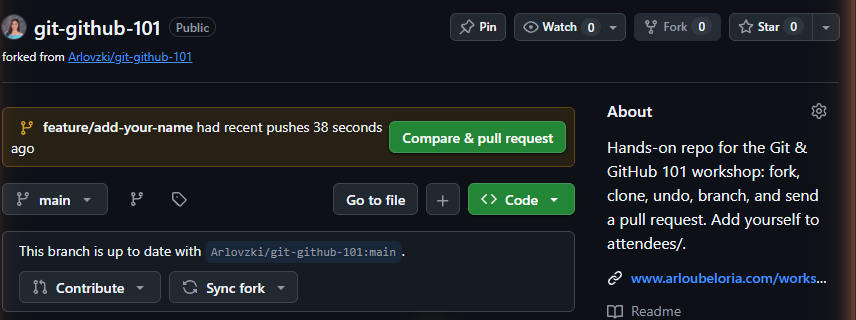
The Compare and pull request banner GitHub shows on a fork in the minutes after a branch is pushed.
GitHub offers this banner for a few minutes after you push
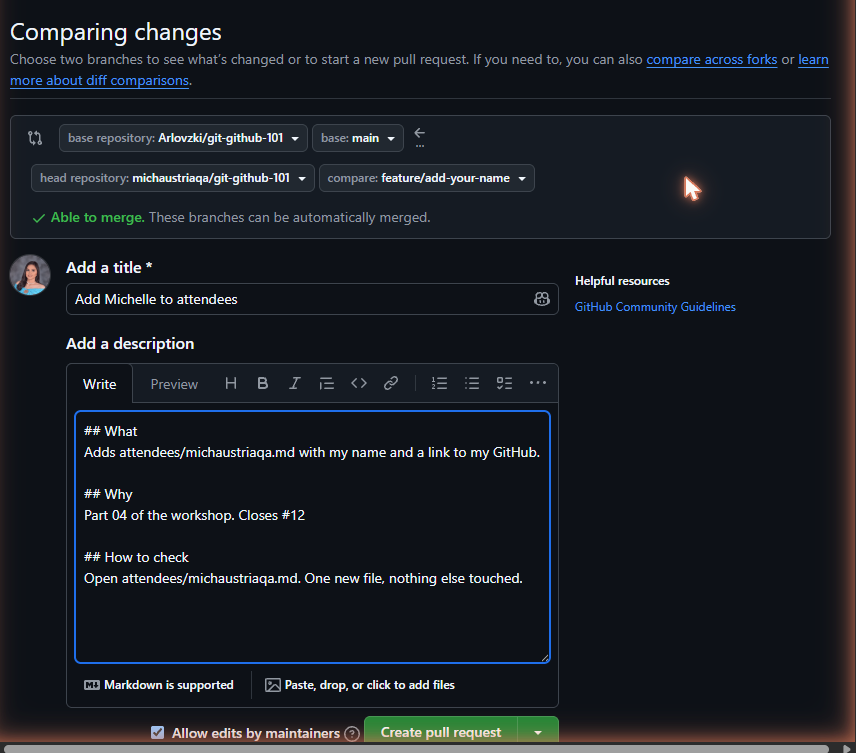
The Open a pull request form: base and head branch selectors, the title field, the description box, and the Create pull request button with its draft option.
Check the base repo and both branches before you press Create
Read your own diff first

Open the Files changed tab before you ask anyone else to look. Half of all review comments are things you would have caught yourself: a stray console.log, a debug file, a block you meant to delete.

Review is about the code

Comments are on the diff, not on you. Push more commits to the same branch and the pull request updates itself; there is nothing to close and nothing to re-send. Reply to each comment, even if only to say you have done it.

Merge request?

GitLab calls the same thing a merge request. Same idea, same buttons, different noun. Bitbucket says pull request, like GitHub. Nothing about Git itself changes.

ACTIVITY

Branch, then open a pull request

ScenarioSame idea, but on a repo you do not own: the merge happens on GitHub through a pull request.

terminal
git switch -c feature/add-your-name# new branch, named the way we just agreed
code attendees/your-username.md# one file each: your name and a link, so pull requests never collide
git add attendees
git commit -m "Add Alex to attendees"# plain imperative: this repo's log has no type prefixes, so neither do we
git push -u origin feature/add-your-name# push the branch to your fork
# GitHub shows a banner: Compare & pull request → Create pull request
Rule for beginners

main always works. Experiments live on branches, an alternate timeline you can merge or throw away.

Checkpoint

Your pull request appears on Arlovzki/git-github-101. I merge them live, one by one.

REFERENCE

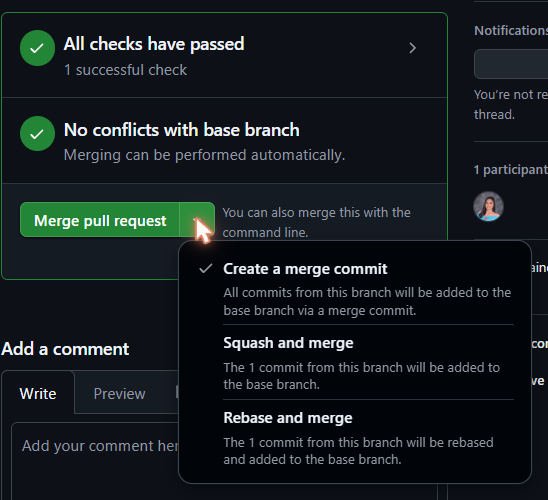
Three ways to merge

The green button has a dropdown. The three options do different things to history, and the repo lives with whichever you pick.

Create a merge commit

Keeps everything. Every commit on the branch lands on main, plus one merge commit tying them together. Your six wip commits included. GitHub's default.

Squash and merge

One branch, one commit. The whole branch collapses into a single commit on main. Clean, linear history; the messy branch history goes with it.

Rebase and merge

Linear, every commit kept. Each commit is replayed onto main with no merge commit. Reads beautifully, but only if every commit was worth keeping.

Which one

If you are unsure, squash. One pull request becomes one commit on main, and git log --oneline reads like a changelog instead of a diary.

what main looks like afterwards
your branch has three commits A B C, and main is at M
merge commit main M ── ── ── ── merge every commit lands, plus one more
squash main M ── ABC one pull request, one commit
rebase main M ── A' ── B' ── C' linear, every commit kept, new IDs
A' is A replayed onto a new base, so it is a new commit with a new ID
The merge box at the foot of an open pull request: the green Merge pull request button and the dropdown offering squash and rebase.
The dropdown beside the green button is where the choice lives
the same two, as commands
# squash and rebase are also things you do yourself, before the pull request
git merge --squash feature/thing# stage the branch's work as one change, then commit it
git rebase main# replay your commits on top of main
git rebase -i HEAD~3# reword, squash or drop your last 3 commitscareful
git rebase --abort# back out, any time mid-rebase
The golden rule of rebase

Never rebase a branch other people have already pulled. Rebase rewrites commits, so everyone else is left holding a copy of history that no longer exists and has to repair it by hand. On your own branch it is the normal way to tidy up before review. On a shared branch use git revert, which undoes a commit by adding a new one.

after the merge
git switch main
git pull# bring the merged work down to your laptop
git branch -d feature/your-thing# the local branch has served its purpose
git remote prune origin# drop the refs to branches GitHub already deleted

GitHub offers to delete the remote branch for you the moment it merges. Take it. The work is in main; the branch is only clutter now.

REFERENCE

When two people edit the same line

A merge conflict is not an error. It is Git refusing to guess which version you meant.

terminal
git pull upstream main
# CONFLICT (content): Merge conflict in attendees/list.md
# Automatic merge failed; fix conflicts and then commit the result.

Git keeps both versions in the file and marks them. Open it and this is what you find:

attendees/list.md
<<<<<<< HEAD
Alex Rivera
=======
Sam Chen
>>>>>>> upstream/main
  1. 01Between <<<<<<< and ======= is your version. Between ======= and >>>>>>> is theirs.
  2. 02Delete the three marker lines and leave the text you want. Often that is both sides, one after the other.
  3. 03git add the file, then git commit. The merge finishes itself.
  4. 04Lost? git merge --abort puts you back exactly where you started, with nothing lost.
terminal
git status# which files are still conflicted
code attendees/list.md# VS Code colours both sides and gives you buttons
git add attendees/list.md# staging the file is how you say resolved
git commit# no -m; Git has already written the merge message
git merge --abort# the escape hatch, any time before that commit
The prevention

Sync before you branch, keep branches short, and split the work so two people rarely touch one file. That is exactly why the attendees folder is one file per person instead of one shared list.

ACTIVITY

Pull everyone's names

ScenarioYour fork only knows your name. The original repo now has the whole room's. Pull the update from there.

terminal
git remote add upstream git@github.com:Arlovzki/git-github-101.git# upstream = the original
git remote -v# origin = your fork, upstream = mine
git switch main
git pull upstream main# everyone's commits arrive
ls attendees# one file per person
git push# bring your fork up to date too
Checkpoint

The attendees folder has one file per person in the room. This is how teams work every day: branch, pull request, merge, pull.

Ship your portfolio

05 / 06

Clone a starter site, make it yours, and put it on the internet for free with GitHub Pages.

25 min
ACTIVITY

Make the starter yours

ScenarioYou have a one-page portfolio template and 15 minutes.

  1. 01Fork github.com/Arlovzki/portfolio-starter, then on the fork: Settings → General → Rename to portfolio.
  2. 02Clone and edit:
terminal
cd ..
git clone git@github.com:your-username/portfolio.git
cd portfolio
code .# or any editor; open index.html
# change the name, the one-line bio, and the GitHub link
git add .
git commit -m "Make the portfolio mine"
git push
ACTIVITY

Deploy to GitHub Pages

ScenarioTurn the repository into a website.

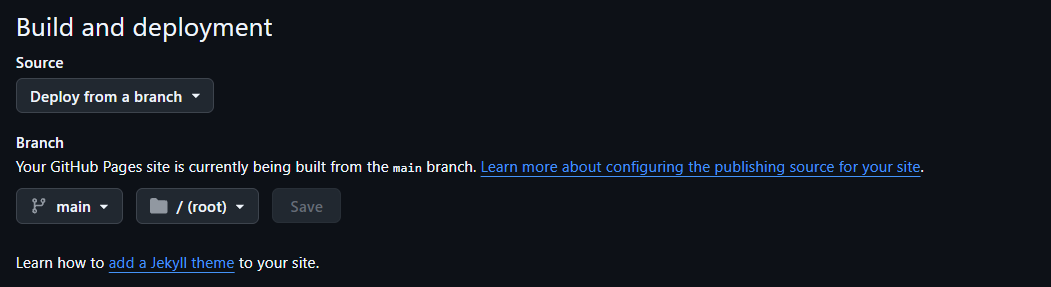
  1. 01Repo Settings → Pages → Source: Deploy from a branch → main / root → Save.
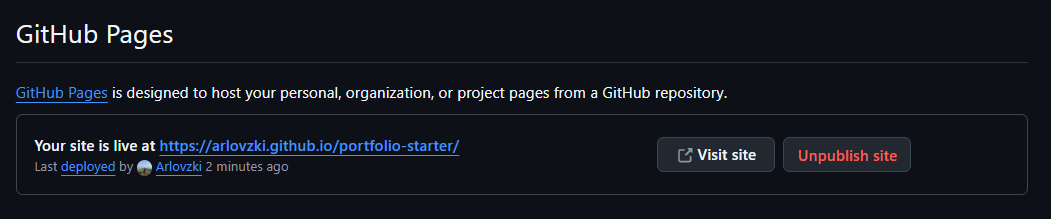
  2. 02Wait about a minute, then open https://your-username.github.io/portfolio.
  3. 03Drop your live link in the chat. Free hosting, forever.
The GitHub Pages settings screen with Source set to Deploy from a branch, the main branch selected, and the root folder selected.
Settings → Pages → Deploy from a branch → main / (root)
The GitHub Pages settings screen after deployment, showing the live site URL with a Visit site button.
A minute later the live URL appears at the top of the same screen
Every future update

Edit, git add ., git commit -m "...", git push. Pages rebuilds on its own. That loop is the whole job.

The Git cheat sheet

06 / 06

Every command from tonight, in the order you will reach for it.

10 min + Q&A
ONCE

Setup and connect

terminal
git config --global user.name "Your Name"
git config --global user.email "you@example.com"
git config --global init.defaultBranch main
git config --global pull.rebase false
ssh-keygen -t ed25519 -C "you@example.com"
ssh -T git@github.com
gh auth login# or let the GitHub CLI do all of the above
git remote set-url origin git@github.com:you/repo.git# switch HTTPS to SSH
EVERY DAY

Daily loop

terminal
git status# what changed
git diff# see the changes
git add .# stage
git commit -m "message"# snapshot
git push# send
git pull# receive
git log --oneline# history
PER PROJECT

Start or join a repo

terminal
git init# new repo here
git remote add origin git@github.com:user/repo.git
git push -u origin main# first push
git clone git@github.com:user/repo.git# copy an existing repo
git remote -v# where do I push?
git remote add upstream git@github.com:owner/repo.git
git pull upstream main# get the original's updates
EVERY PULL REQUEST

Working on someone else's repo

terminal
git switch main# 1. start from a clean main
git fetch upstream && git merge upstream/main# 2. sync before you branch
git push# 3. bring your fork up to date too
git switch -c feature/the-thing# 4. branch: type/what, one topic
git commit -m "Add the thing"# 5. imperative, under 50 chars
git push -u origin feature/the-thing# 6. push, then open the pull request
# 7. title, what and why, Closes #12, read your own diff, request review
git switch main && git pull# 8. after it merges
git branch -d feature/the-thing# 9. and tidy up
WHEN IT BREAKS

Merge conflicts

terminal
git status# which files are conflicted
# edit the file: keep what you want, delete the <<<<<<< ======= >>>>>>> lines
git add the-file# staging it means resolved
git commit# no -m; Git wrote the message already
git merge --abort# bail out, back to where you started
WHEN NEEDED

Branches and undo

terminal
git switch -c branch-name# new branch
git switch main# go back
git merge branch-name# from main
git branch# list · -d name deletes
git restore file# undo unstaged edits
git reset --soft HEAD~1# uncommit, keep work
git reset --hard HEAD~1# uncommit, discard workcareful
git revert HEAD# undo a pushed commit
git reflog# the magic time machine: everything you did
git blame file# who last touched each line, and in which commit

What did you think?

Loading reactions…

$ git push

Keep going

You leave with a profile README, a merged pull request, and a live website. The slides, the cheat sheet, and every resource stay on this page.

Running your own workshop someday? Fork all of it and use it as your starting point.